# Asset Compatibility
Source: https://docs.ordinary.space/editor/assets
Supported asset types
## Compatible File types
| Image | 3D | Audio | Video |
| :----------- | :---- | :---------- | :---- |
| `JPEG` `PNG` | `GLB` | `MP3` `WAV` | `MP4` |
## Max File and Texture Sizes
| | Free | Pro |
| :----------------- | :----- | :----- |
| 3D asset size | 10mb | 25mb |
| Audio file size | 3mb | 10mb |
| Video file size | 5mb | 15mb |
| Image texture size | 1024px | 2048px |
# Export States
Source: https://docs.ordinary.space/editor/export
How to export a state as GLB file
## Export GLB
View the state you want to export and deselect any object.
In the settings panel on the right, click on `Export State`
## GLB structure
The exported GLB file will use the Ordinary Objects' `World Anchor` as origin `x = 0`, `y = 0`, `z = 0`.
This ensures that your exported file can be used in various other ways and tools such as the Meta Spatial Editor, Unity3D, Unreal etc. with a shared understanding of an origin.
# Keyboard Shortcuts
Source: https://docs.ordinary.space/editor/keyboard-shortcuts
How to copy, paste and do other things with keyboard shortcuts
On Mac `cmd` is equivalent to `ctrl` on Windows
| | |
| ----------------------------------------------- | ---------------------------- |
| Copy selected hierarchy objects | `cmd` / `ctrl` + `c` |
| Paste object(s) | `cmd` / `ctrl` + `v` |
| Delete selected hierarchy objects | `cmd` / `ctrl` + `backspace` |
| Refocus on a selected object (mouse in 3D view) | `f` |
| Show scale gizmos (with object selected) | `s` |
# Viewport Navigation
Source: https://docs.ordinary.space/editor/viewport-navigation
How to move, rotate and pan the viewport
On Mac `cmd` is equivalent to `ctrl` on Windows
### Trackpad
| | |
| -------------------------- | --------------------------------------- |
| Zoom in viewport direction | cmd + two finger scroll |
| Zoom to specific object | select object + cmd + two finger scroll |
| Rotate viewport | left click + drag |
| Rotate around object | select object + left mouse click + drag |
| Pan | two finger scroll |
### Apple Magic Mouse
| | |
| -------------------------- | --------------------------------- |
| Zoom in viewport direction | cmd + scroll |
| Zoom to specific object | select object + cmd + scroll |
| Rotate viewport | left click + drag |
| Rotate around object | select object + left click + drag |
| Pan | single finger scroll |
### Standard Mouse
| | |
| -------------------------- | --------------------------------- |
| Zoom in viewport direction | cmd + scroll |
| Zoom to specific object | select object + cmd + scroll |
| Rotate viewport | left click + drag |
| Rotate around object | select object + left click + drag |
| Pan | wheel click + drag |
# Get the apps
Source: https://docs.ordinary.space/get-the-apps
Create an account and get the apps you need
## Create an account
You can create an account for free on our [Portal](https://app.ordinary.space).
## Get the Editor
The OO Editor runs natively on macOS and Windows. Both versions feature the same tools and allow to design experiences running on all Mirrors.
Get the Editor on TestFlight
Download the Editor here
## Get the Mirror
The OO Mirrors run natively on visionOS, iOS/iPadOS and Meta Quest.
Get the Mirror on TestFlight
Get the Mirror on the Meta Store
Get the Mirror on TestFlight
## Jump right in
Once you have an Editor and Mirror installed, checkout the Templates in the Tutorials section to get going instantly.
Checkout existing templates for hands on examples.
# Welcome to Ordinary Objects
Source: https://docs.ordinary.space/index
Ordinary Objects is a radical approach to designing spatial computing apps. We introduce a novel workflow to supercharge designers and teams to create high fidelity spatial prototypes that are representative of an application.
Please join our 💬 [**Discord server**](https://discord.gg/Ef2EFMB2eJ) to request features, leave feedback and report issues.
## Get started
Create an account and get the apps.
## Ordinary Objects 101
If you are already up and running with an account and the apps, we recommend you to go to [Tutorials](/tutorials/overview) and jump right into action.
Quickstart with ready to use templates.
Learn the essential bits and pieces of the Editor.
# System Gestures (iOS/iPadOS)
Source: https://docs.ordinary.space/mirror/ios-navigation
Learn how to restart and exit a flow.
## Restart a project/flow
Long tap (3sec) with two fingers anywhere on the screen.
Restarting a flow will fetch the latest version of the flow.
***
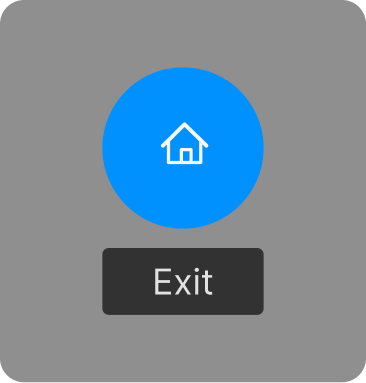
## Exit a flow (back to home)
Long tap with three fingers anywhere on the screen.
# System Gestures (Meta Quest)
Source: https://docs.ordinary.space/mirror/quest-navigation
Learn how to restart and exit a flow.
## Restart a project/flow
Hands: Long pinch middle finger.
Controller: Long press A/X
Hold and wait until the blue circle is fully blue.
***
## Exit a flow (back to home)
Hands: Long pinch ring finger.
Controller: Long press B/Y
Hold and wait until the blue circle is fully blue.
# System Gestures (visionOS)
Source: https://docs.ordinary.space/mirror/vision-navigation
Learn how to restart and exit a flow.
## Restart a project/flow
Long pinch middle finger.
Hold and wait until the blue circle is fully blue.
***
## Exit a flow (back to home)
Long pinch ring finger.
Hold and wait until the blue circle is fully blue.
# Team Management
Source: https://docs.ordinary.space/portal/team-management
Start collaborating with others by creating a team and send invites.
Account and team management must be done via the Portal [app.ordinary.space](http://app.ordinary.space)
## Create a team
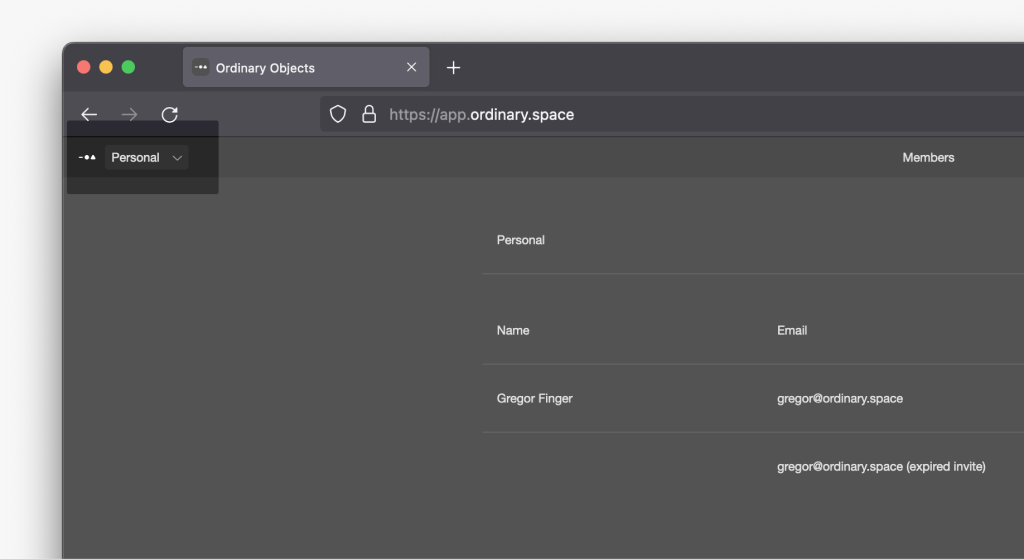
Go to [app.ordinary.space](http://app.ordinary.space) and login with your admin account
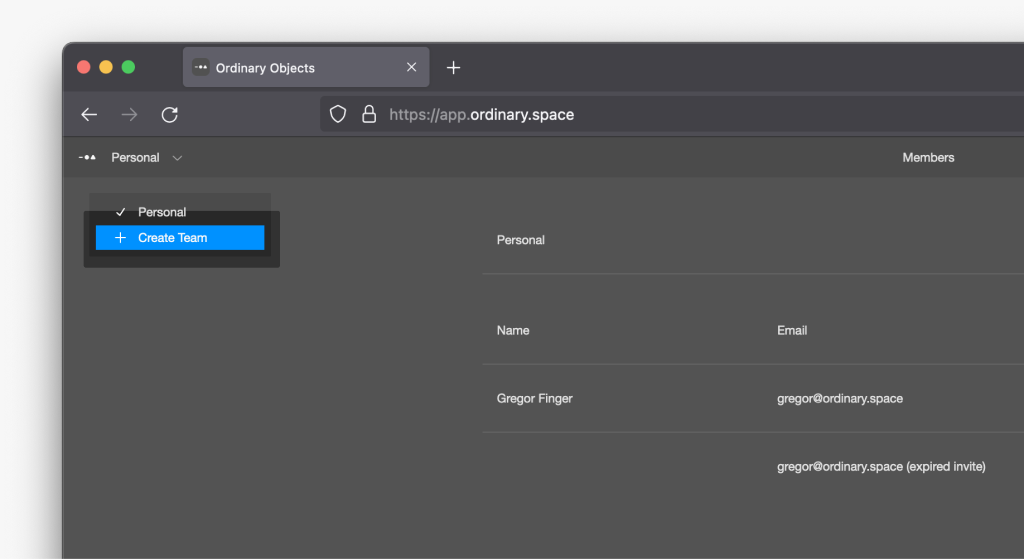
In the top bar in the middle, click on `Personal` to expand the team dropdown.
In the dropdown, click on `Create Team`
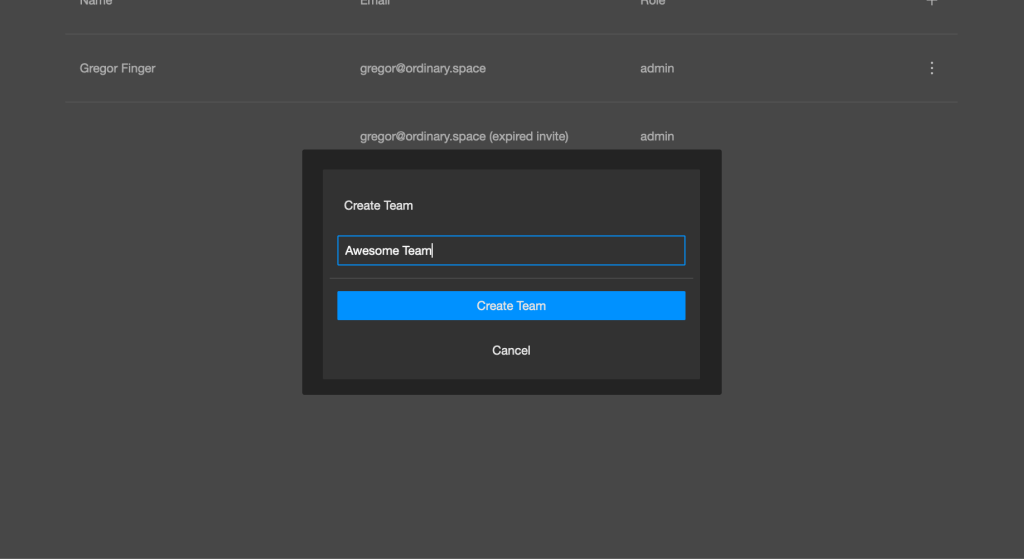
Set the team name in the pop-up and press `Create Team`
***
## Invite Collaborators to your team
You might need to refresh the browser, and restart editor and mirror to see the new teams.
Select the team, you want to invite your collaborators to, from the team dropdown
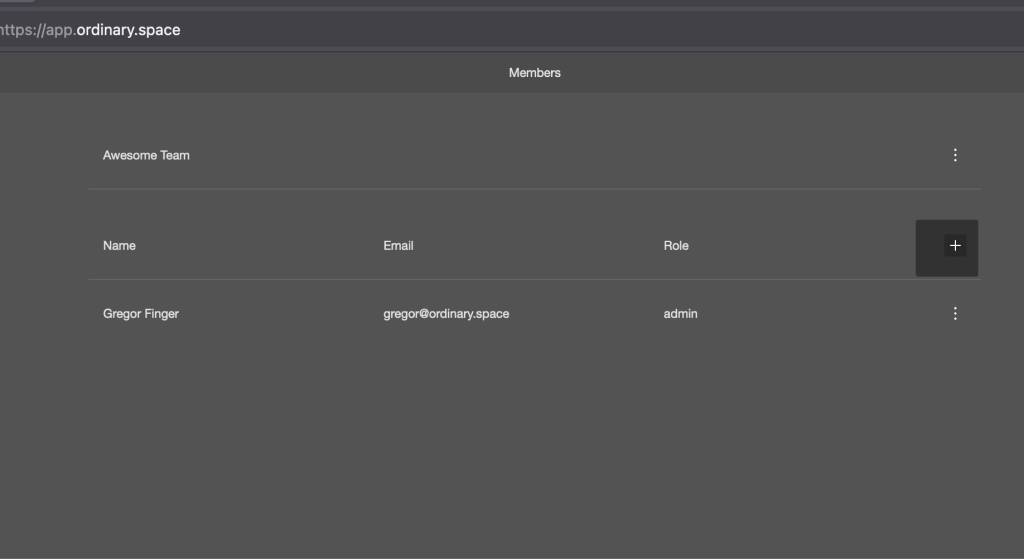
Click on the plus `+` icon to the right in the members list header.
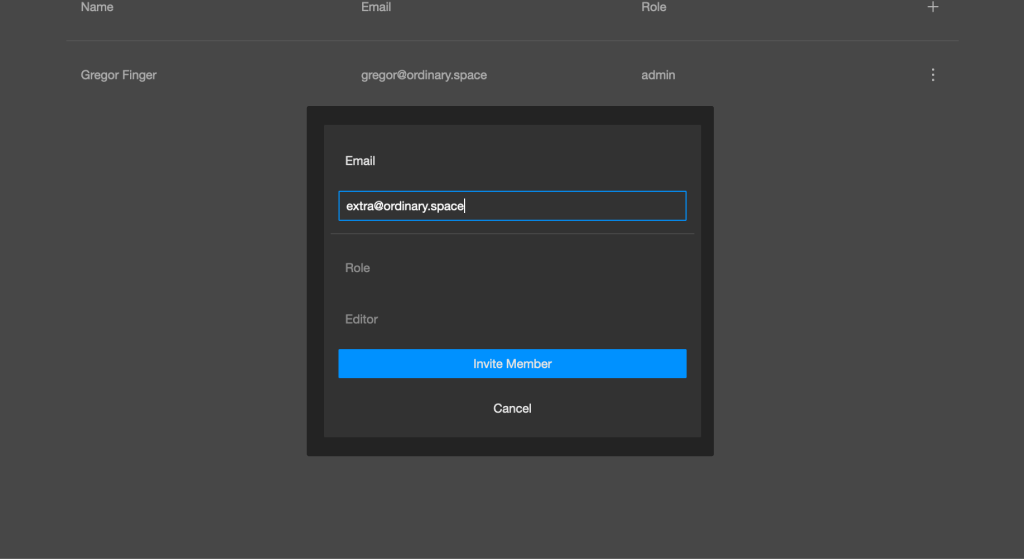
Type in the user's email address
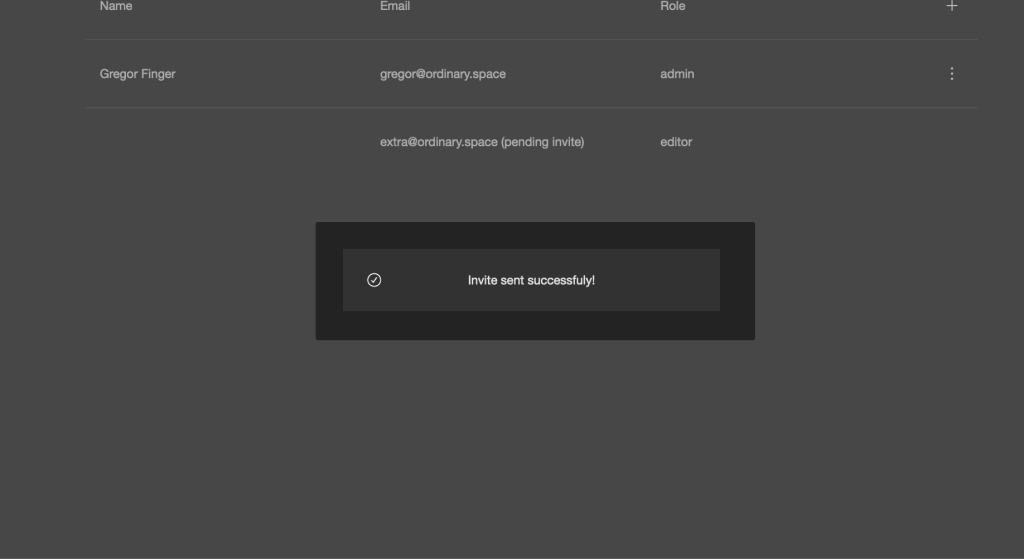
Press `Invite Member`
***
## Change the team name
Select the team, you want to change the name of, from the team dropdown
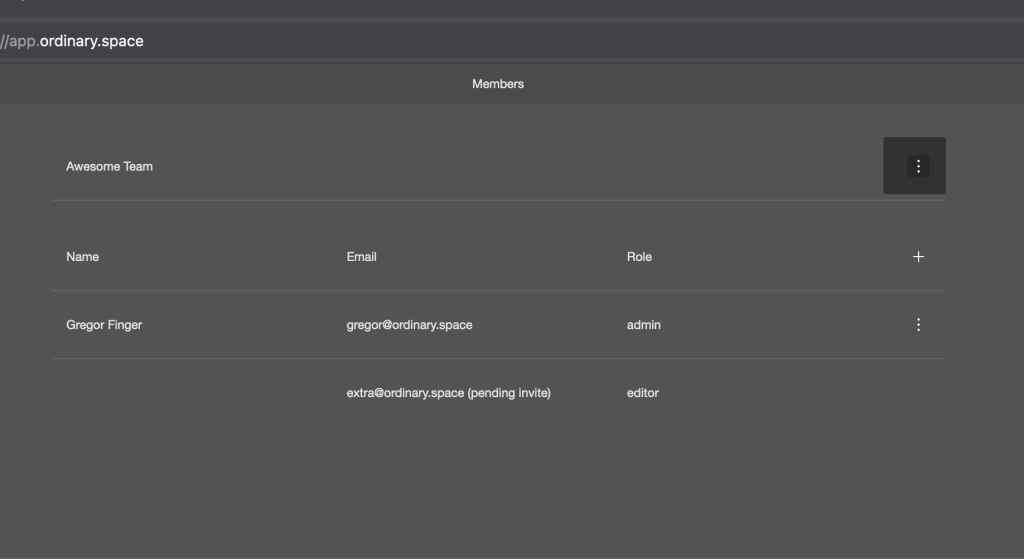
Click on the three dots menu to the left of the team name.
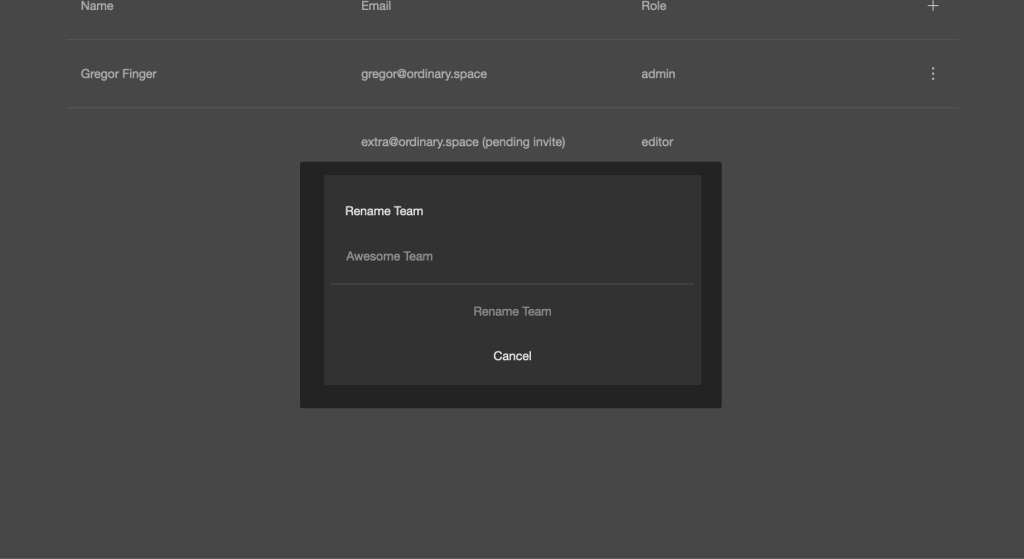
Type in the new name in the pop-up and press `Rename Team`
***
## Limitations
* For now, it’s only possible to invite other users as Editor, not Admin to a team.
* For now, it’s not possible to delete teams.
# Troubleshooting
Source: https://docs.ordinary.space/troubleshooting
Resolve common issues and get answers to frequently asked questions.
To report a bug that is not on this page, please let us know via [**Discord**](https://discord.gg/Ef2EFMB2eJ) or email.
# Vision Pro
* Currently, `GLB` assets are only allowed to use one material.
* Plane Anchors are not supported for Vision Pro yet. Use the World or Spatial Anchors instead.
* Use the **New Quest 3 Project** button to create a new project for Vision Pro.
# Team Management
* For now, it’s only possible to invite other users as Editor, not Admin, to a team.
* For now, it’s not possible to delete teams.
# 3D Model Optimizations
Source: https://docs.ordinary.space/tutorials/asset-handling/3d-model-optimizations
Notes on quick wins to make your prototypes run smoothly
## Export Compression
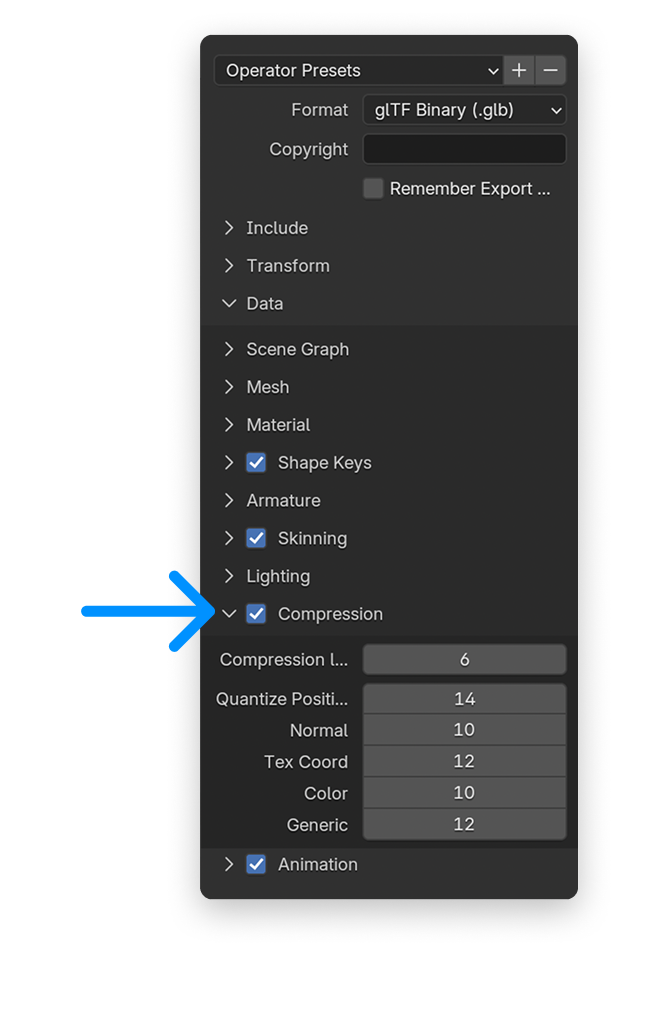
A quick win to make heavy 3D assets more performant and save on file size is to compress it's textures.
Blender offers a simple checkbox on export with various parameters to optimise even further.
## Optimize texture maps
The Blender plugin [SimpleBake](https://superhivemarket.com/products/simplebake---simple-pbr-and-other-baking-in-blender-2) helps to optimize textures for exmaple by allowing you to separately bake the textures of a selected object.
## View 3D models in your file system
When creating multiple versions of a 3D model, it can be tricky to compare or find the right one. [3DViewer.xyz](https://3dviewer.xyz/) is a great helper that integrates nicely with your macOS finder to preview 3D models of varrying file fromats.
# Shape Key Animations for Vision Pro
Source: https://docs.ordinary.space/tutorials/asset-handling/shape-key-animations-vision-pro
Make Shape Keys work with this trick.
Select the object with the shape key animation and press shift + A
Go to, armature and add a single bone
This drops the bone in hierarchy, but it's not connected to the object
Select both, the object and the armature (bone), first select the armature, then the object
Then press command + P to parent
Select 'with automatic weights'
For export select the armature in the hierarchy and choose 'Selected Objects' under Include 'Limit to' in the export settings.
# Video Playback
Source: https://docs.ordinary.space/tutorials/asset-handling/video-playback
Considerations when using video assets.
## Supported File Type
* `MP4` encoded in `H264`
## Considerations
* The first frame of a video will be it's thumbnail.
* When stoping a video, it will reset to the first frame.
## Other
[Asset Compatibility and allowed file sizes](../../editor/assets)
# Ordinary Objects 101
Source: https://docs.ordinary.space/tutorials/basics/oo-101
The quickest way to get started is to watch the Ordinary Objects 101 video.
### Project Editor Interface
### Keyboard Shortcuts
### Home Overview
### Triggers Overview
### First Project
### States Interface
### Auto Transform Action
### Next: try out templates
Short descriptions
# Templates
Source: https://docs.ordinary.space/tutorials/basics/templates
Templates are a great way to understand the relationship between the editor and mirror apps and to get into the details of how to utilize the actions and triggers best.
You can find the templates in the sidebar on the left side of the Editor.
To get going you need:
* An Ordinary Objects account
* The editor on Mac or Windows
* The mirror on Vision Pro / iOS / iPadOS / Meta Quest
## Poke Sphere Around Center
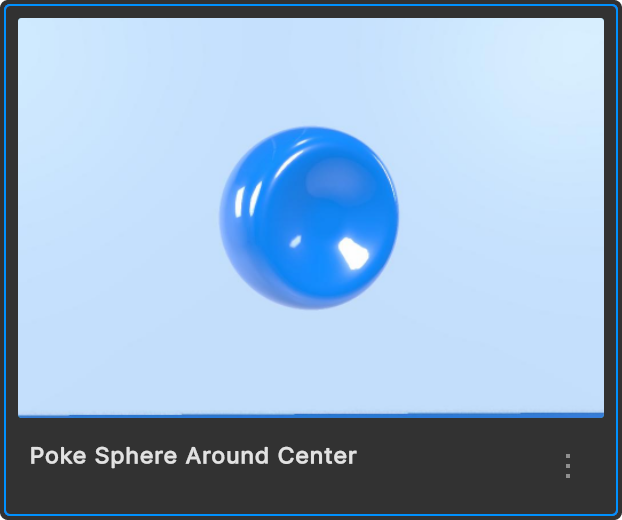
A simple yet playful exploration of a speculative user interface.
On Vision Pro, simply point at and come closer to the sphere with your right index finger.
Rotate it around its center and leave it in that position by moving your finger away again.
**Bonus: try to modify the template in the editor**:
* Change the color of the sphere when active and inactive.
* Adjust the interaction to the left index finger.
***
## Options Carousel (Vision Pro)
For Vision Pro use the template with the extension (Vision Pro).
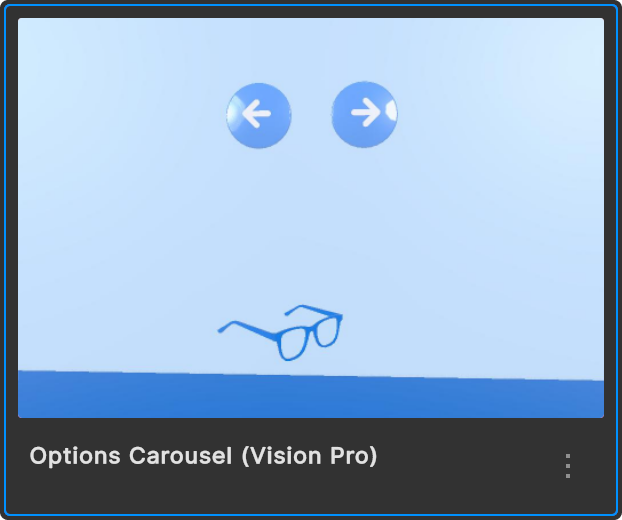
A demo that lets you cycle through different options of a speculative product selection.
Gaze+pinch the arrows to show the next or previous option.
**Bonus: try to modify the template in the editor**:
* Instead of hiding the inactive options, just have them move to the background.
* Add a fourth option.
***
## Wearable Demo
A playful exploration of reviewing fitness data.
Look at your left hand outside wrist. Either gaze+pinch the button or wait a split second to preview the data on the wrist.
Rotate the map by moving your right index finger closer and around.
Enlarge and lock the map in space by clicking the open button.
**Bonus: try to modify the template in the editor**:
* Instead of playing the runner marker animation immediately, add a button to trigger the animation.
Suggest more templates in Discord.
# Tutorials
Source: https://docs.ordinary.space/tutorials/basics/tutorials
Templates are a great way to understand the relationship between the editor and mirror apps and to get into the details of how to utilize the actions and triggers best.
## Spatial music player UI
Learn how to make a prototype for a music player UI for spatial computing
***
## Spatial calendar widget
Learn how to design an iOS/iPad spatial widget.
# Overview
Source: https://docs.ordinary.space/tutorials/overview
Our templates are a great way to understand the relationship between the editor and mirror apps. The Ordinary Objects 101 playlist features short videos to get into the details of how to utilize the actions and triggers best.
Please join our 💬 [**Discord server**](https://discord.gg/Ef2EFMB2eJ) to request features, leave feedback and report issues.
Quickstart with ready to use templates.
Learn the essential bits and pieces of the Editor.
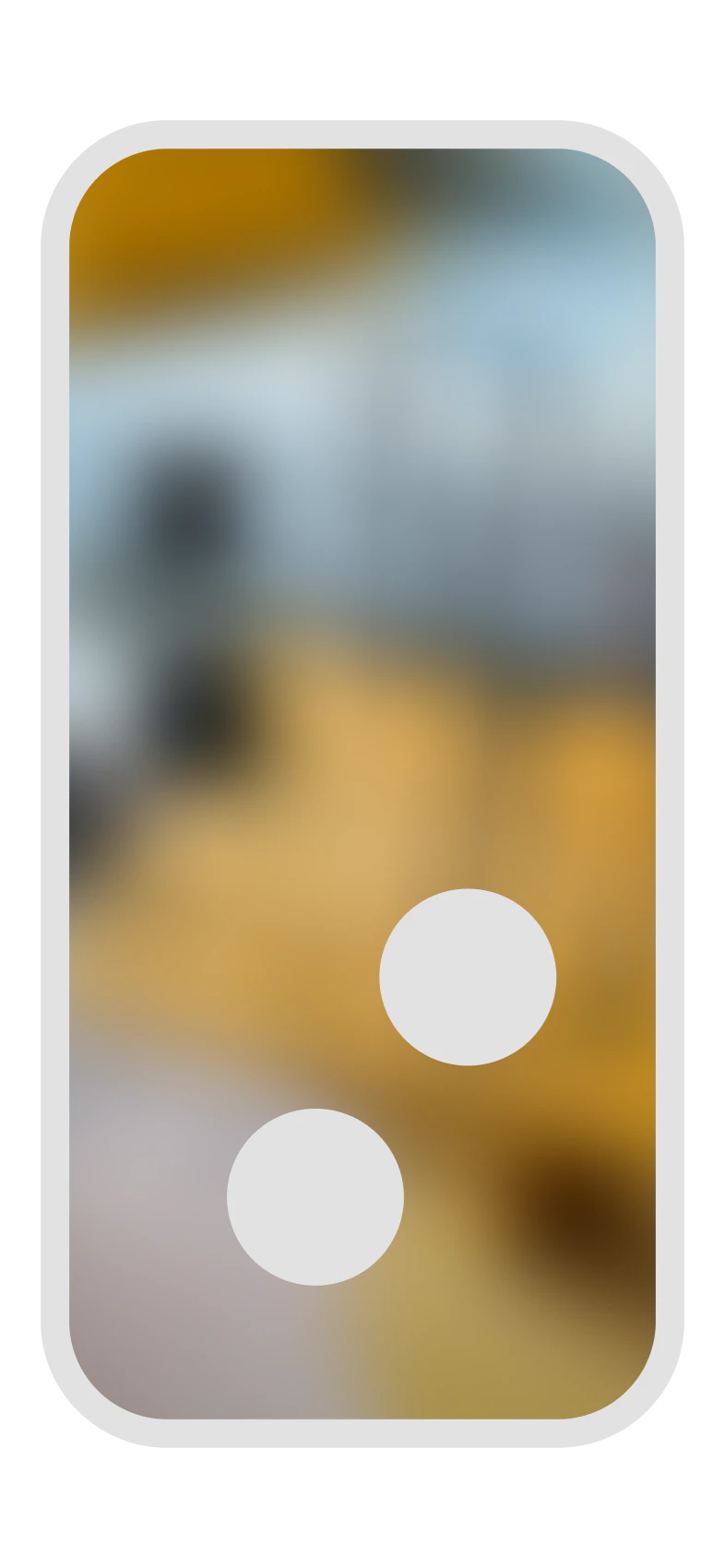 Long tap (3sec) with two fingers anywhere on the screen.
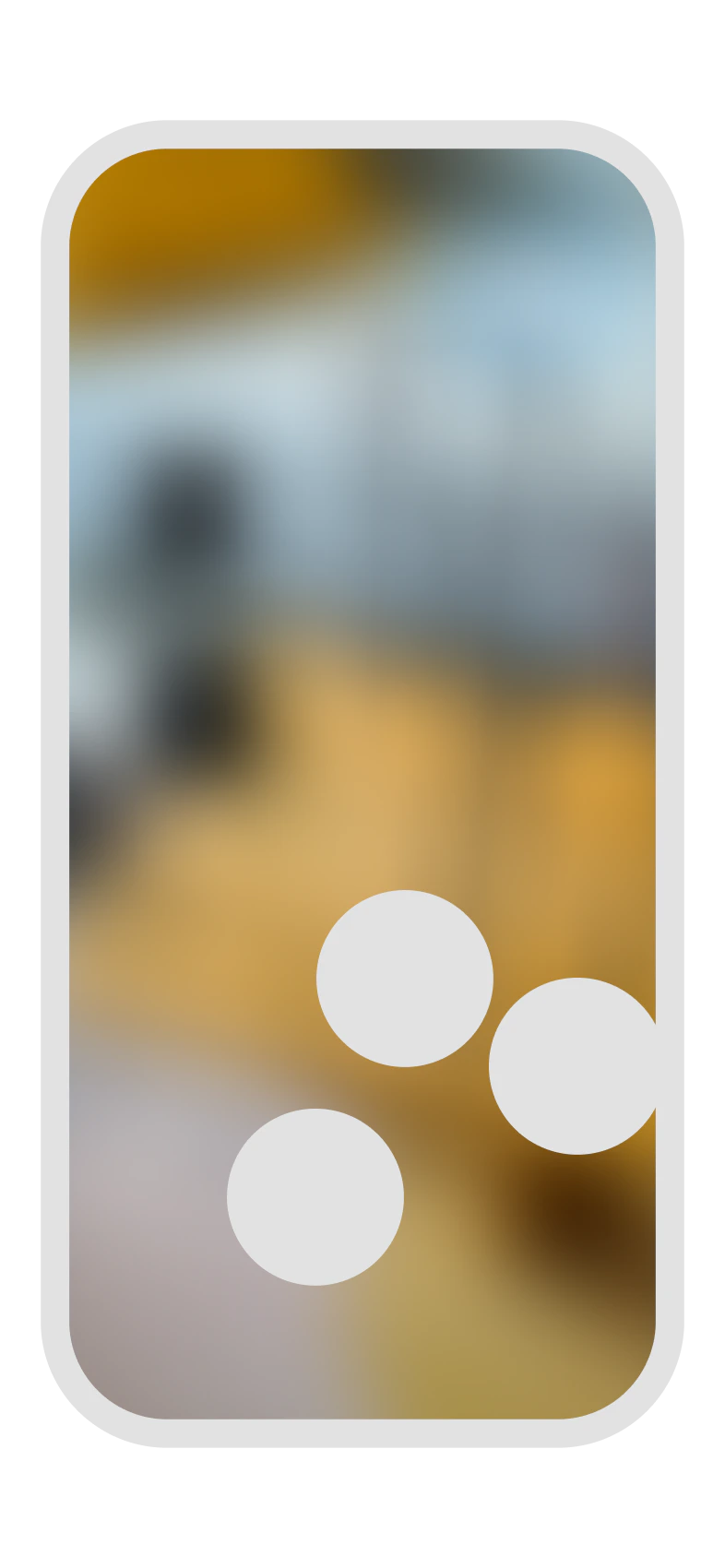 Long tap with three fingers anywhere on the screen.

 On Vision Pro, simply point at and come closer to the sphere with your right index finger.
Rotate it around its center and leave it in that position by moving your finger away again.
**Bonus: try to modify the template in the editor**:
* Change the color of the sphere when active and inactive.
* Adjust the interaction to the left index finger.
***
## Options Carousel (Vision Pro)
 Gaze+pinch the arrows to show the next or previous option.
**Bonus: try to modify the template in the editor**:
* Instead of hiding the inactive options, just have them move to the background.
* Add a fourth option.
***
## Wearable Demo
A playful exploration of reviewing fitness data.
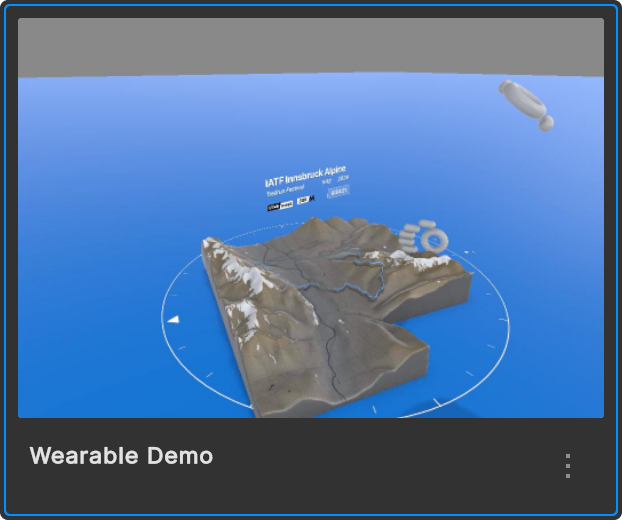 Look at your left hand outside wrist. Either gaze+pinch the button or wait a split second to preview the data on the wrist.
Rotate the map by moving your right index finger closer and around.
Enlarge and lock the map in space by clicking the open button.
**Bonus: try to modify the template in the editor**:
* Instead of playing the runner marker animation immediately, add a button to trigger the animation.