> ## Documentation Index
> Fetch the complete documentation index at: https://docs.ordinary.space/llms.txt
> Use this file to discover all available pages before exploring further.

# Team Management

> Start collaborating with others by creating a team and send invites.

<Note>
  Account and team management must be done via the Portal [app.ordinary.space](http://app.ordinary.space)
</Note>

## Create a team

<Steps>
  <Step title="Login to the portal">
    Go to [app.ordinary.space](http://app.ordinary.space) and login with your admin account
  </Step>

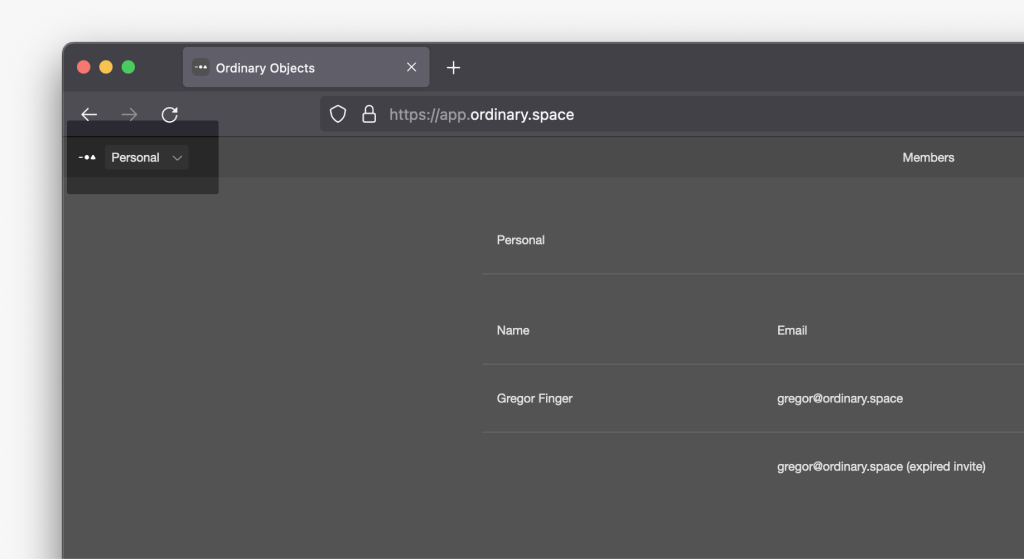
  <Step title="Open the team selection">
    In the top bar in the middle, click on `Personal` to expand the team dropdown.
    <img src="https://mintcdn.com/ordinaryobjects/O0VpJ6Vr7kjpRroz/images/team-management/Create-Team01.png?fit=max&auto=format&n=O0VpJ6Vr7kjpRroz&q=85&s=57998681220a6d11f86403629c3a6b1d" alt="Create-Team01.png" width="1024" height="559" data-path="images/team-management/Create-Team01.png" />
  </Step>

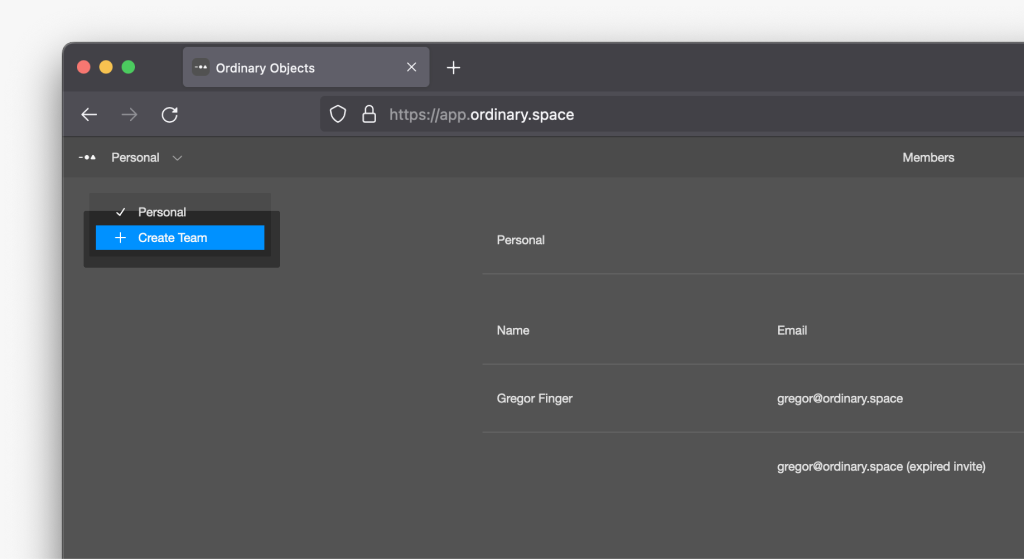
  <Step title="Create a new team">
    In the dropdown, click on `Create Team`
    <img src="https://mintcdn.com/ordinaryobjects/O0VpJ6Vr7kjpRroz/images/team-management/Create-Team02.png?fit=max&auto=format&n=O0VpJ6Vr7kjpRroz&q=85&s=053eb0f8e94a4da7f873e2c6f3787ad8" alt="Create-Team02.png" width="1024" height="559" data-path="images/team-management/Create-Team02.png" />
  </Step>

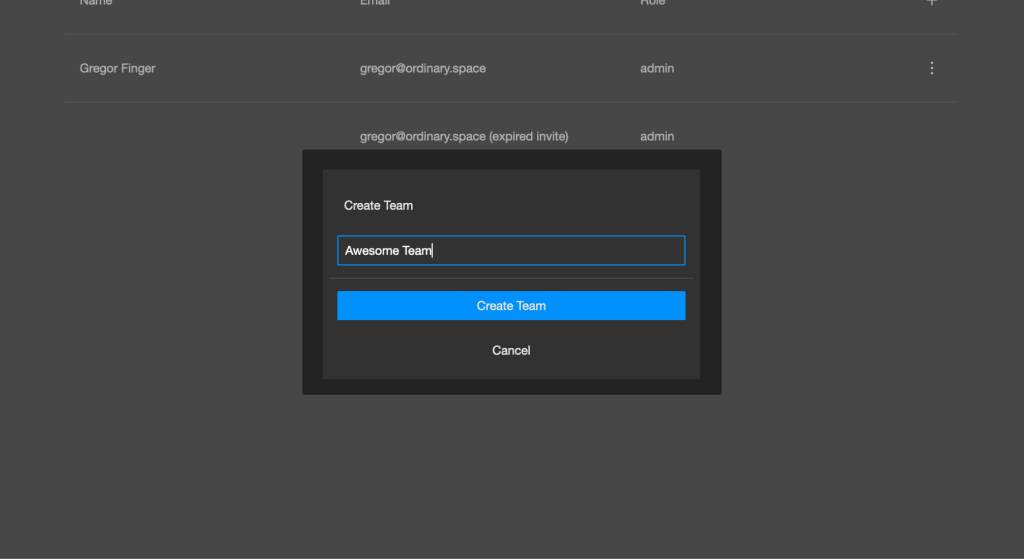
  <Step title="Set the name and confirm">
    Set the team name in the pop-up and press `Create Team`
    <img src="https://mintcdn.com/ordinaryobjects/O0VpJ6Vr7kjpRroz/images/team-management/Create-Team03.png?fit=max&auto=format&n=O0VpJ6Vr7kjpRroz&q=85&s=bb92a4f56fe2be9a391f885715f831f9" alt="Create-Team03.png" width="1024" height="559" data-path="images/team-management/Create-Team03.png" />
  </Step>
</Steps>

***

## Invite Collaborators to your team

<Note>
  You might need to refresh the browser, and restart editor and mirror to see the new teams.
</Note>

<Steps>
  <Step title="Select the team">
    Select the team, you want to invite your collaborators to, from the team dropdown
  </Step>

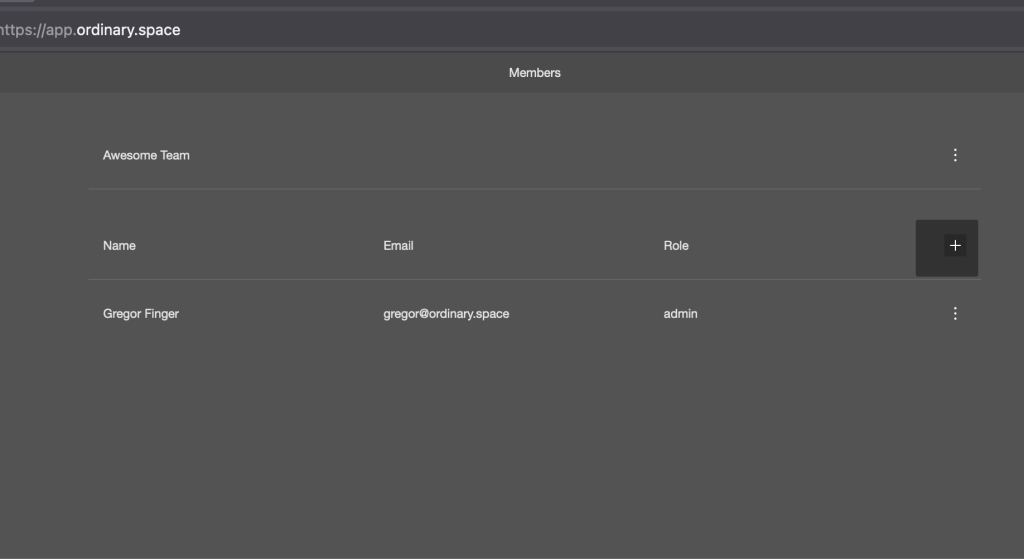
  <Step title="Add collaborator">
    Click on the plus `+` icon to the right in the members list header.
    <img src="https://mintcdn.com/ordinaryobjects/O0VpJ6Vr7kjpRroz/images/team-management/Create-Team04.png?fit=max&auto=format&n=O0VpJ6Vr7kjpRroz&q=85&s=ad3f0e66aa3381ac6f0d5f7f41ebf496" alt="Create-Team04.png" width="1024" height="559" data-path="images/team-management/Create-Team04.png" />
  </Step>

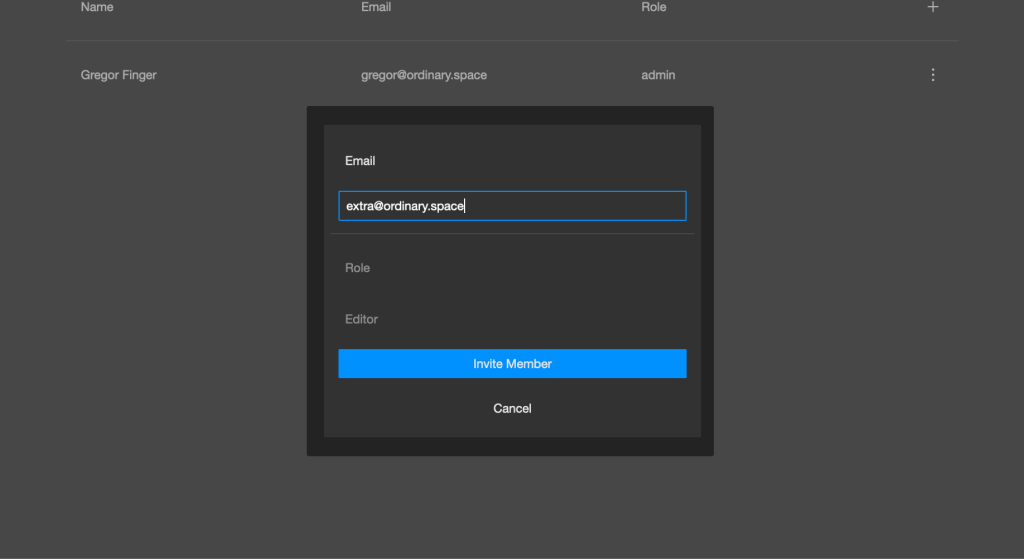
  <Step title="Invite via email">
    Type in the user's email address

    <img src="https://mintcdn.com/ordinaryobjects/O0VpJ6Vr7kjpRroz/images/team-management/Create-Team05.png?fit=max&auto=format&n=O0VpJ6Vr7kjpRroz&q=85&s=d41b345aa3bf66a37899273b7ea8c827" alt="Create-Team05.png" width="1024" height="559" data-path="images/team-management/Create-Team05.png" />
  </Step>

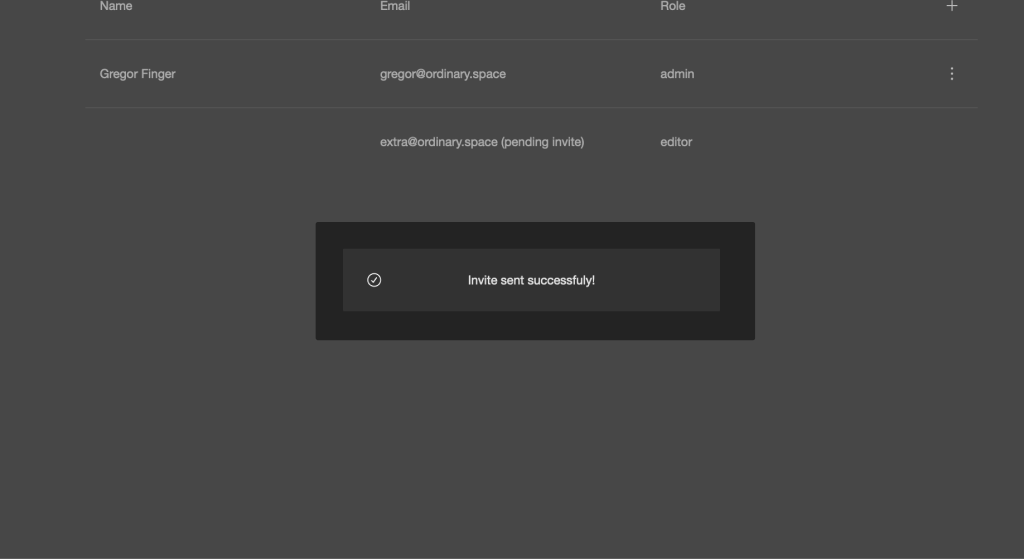
  <Step title="Send the invitation">
    Press `Invite Member`

    <img src="https://mintcdn.com/ordinaryobjects/O0VpJ6Vr7kjpRroz/images/team-management/Create-Team06.png?fit=max&auto=format&n=O0VpJ6Vr7kjpRroz&q=85&s=75e182e85c821bd8bd4efab44acbf978" alt="Create-Team06.png" width="1024" height="559" data-path="images/team-management/Create-Team06.png" />
  </Step>
</Steps>

***

## Change the team name

<Steps>
  <Step title="Select the team">
    Select the team, you want to change the name of, from the team dropdown
  </Step>

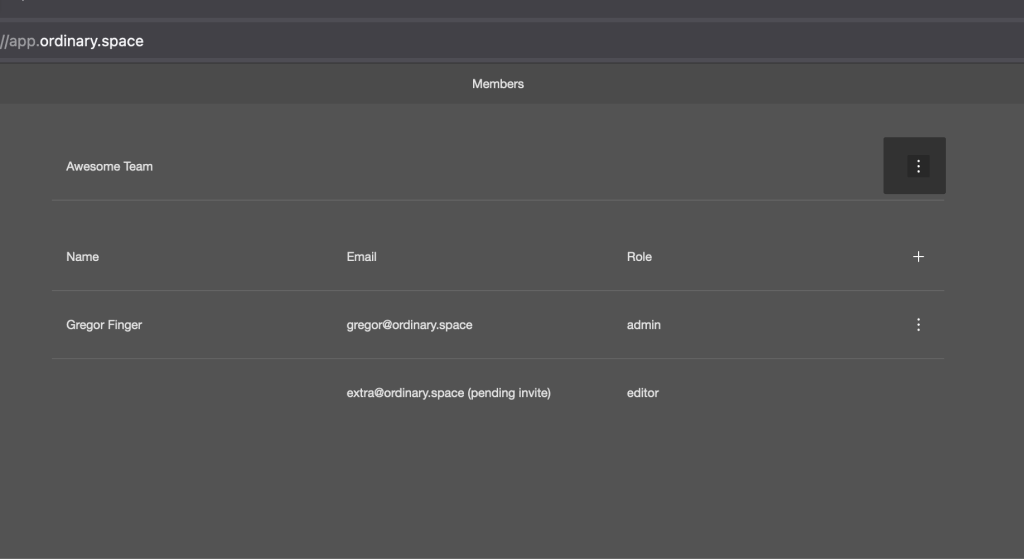
  <Step title="Open the context menu">
    Click on the three dots menu to the left of the team name.
    <img src="https://mintcdn.com/ordinaryobjects/O0VpJ6Vr7kjpRroz/images/team-management/Create-Team07.png?fit=max&auto=format&n=O0VpJ6Vr7kjpRroz&q=85&s=2ab2a826b464c4213b478d39f6682759" alt="Create-Team07.png" width="1024" height="559" data-path="images/team-management/Create-Team07.png" />
  </Step>

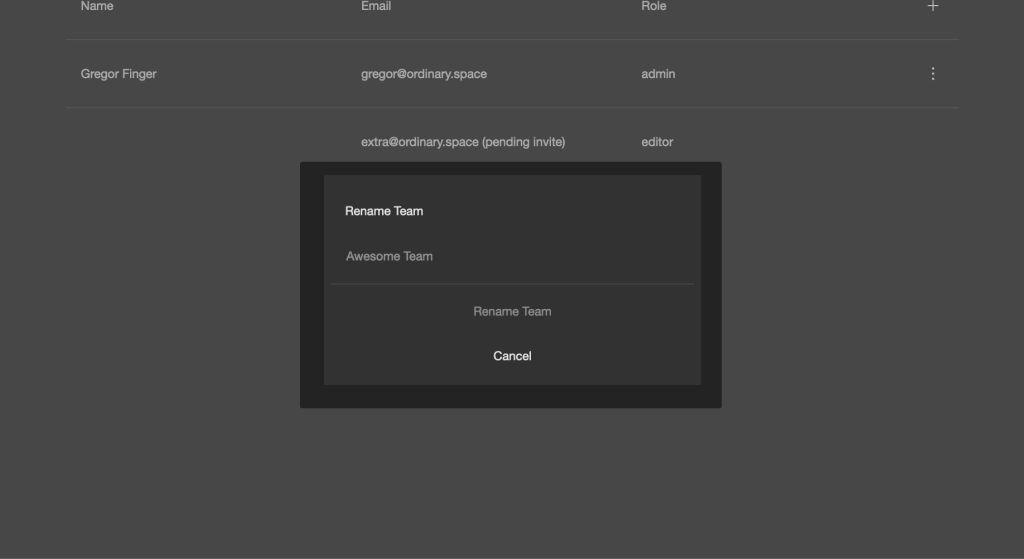
  <Step title="Fill out the new name">
    Type in the new name in the pop-up and press `Rename Team`
    <img src="https://mintcdn.com/ordinaryobjects/O0VpJ6Vr7kjpRroz/images/team-management/Create-Team08.png?fit=max&auto=format&n=O0VpJ6Vr7kjpRroz&q=85&s=f569106d64d28c241bfa30a82da24a02" alt="Create-Team08.png" width="1024" height="559" data-path="images/team-management/Create-Team08.png" />
  </Step>
</Steps>

***

## Limitations

* For now, it’s only possible to invite other users as Editor, not Admin to a team.
* For now, it’s not possible to delete teams.